Install it, open a terminal, and have your first conversation with an AI that writes code.
Day 1 · 15 min
You are about to use something that did not exist two years ago.
Claude Code is an AI that lives in your terminal. You open it, describe what you want in plain English, and it writes the code, creates the files, runs the commands, and builds the thing. You do not need to know how to code. You do not need to understand programming languages, frameworks, or build tools. You describe. It executes.
This is not a chatbot. Chatbots answer questions. Claude Code does things. It reads your files, understands your project, creates new files, edits existing ones, runs terminal commands, and checks its own work. When you tell it “build me a personal website,” it does not explain how to build one. It builds one.
This is not autocomplete. Autocomplete suggests the next few characters as you type code. Claude Code writes entire projects from a conversation. You never touch a code editor unless you want to.
Think of it this way: you are hiring a developer who works at your direction. You say what you want. They figure out how to build it, ask clarifying questions if needed, and deliver working code. The difference is that this developer works in seconds and is available whenever you need it.
Before you start, make sure you have:
By the end of this lesson, you will have Claude Code installed and running on your machine. You will have had your first conversation with it. And you will have watched it create something real on your computer.
Let’s start.
You need two things on your computer: Node.js and Claude Code itself. This takes about five minutes.
Node.js is the engine that runs Claude Code. You do not need to understand what it does. You just need it installed.
To verify it worked, open your terminal:
Type this and press Enter:
node --version
You should see a version number like v22.12.0. The exact number does not matter. If you see an error, close your terminal, reopen it, and try again. The installer sometimes needs a fresh terminal to take effect.
In your terminal, type:
npm install -g @anthropic-ai/claude-code
This downloads Claude Code and makes it available everywhere on your machine. It takes 30-60 seconds.
If you get a “permission denied” error on Mac or Linux, the Node.js install may need fixing. The cleanest solution: visit nodejs.org, download the LTS installer again, and reinstall. Avoid using sudo with npm.
Type:
claude
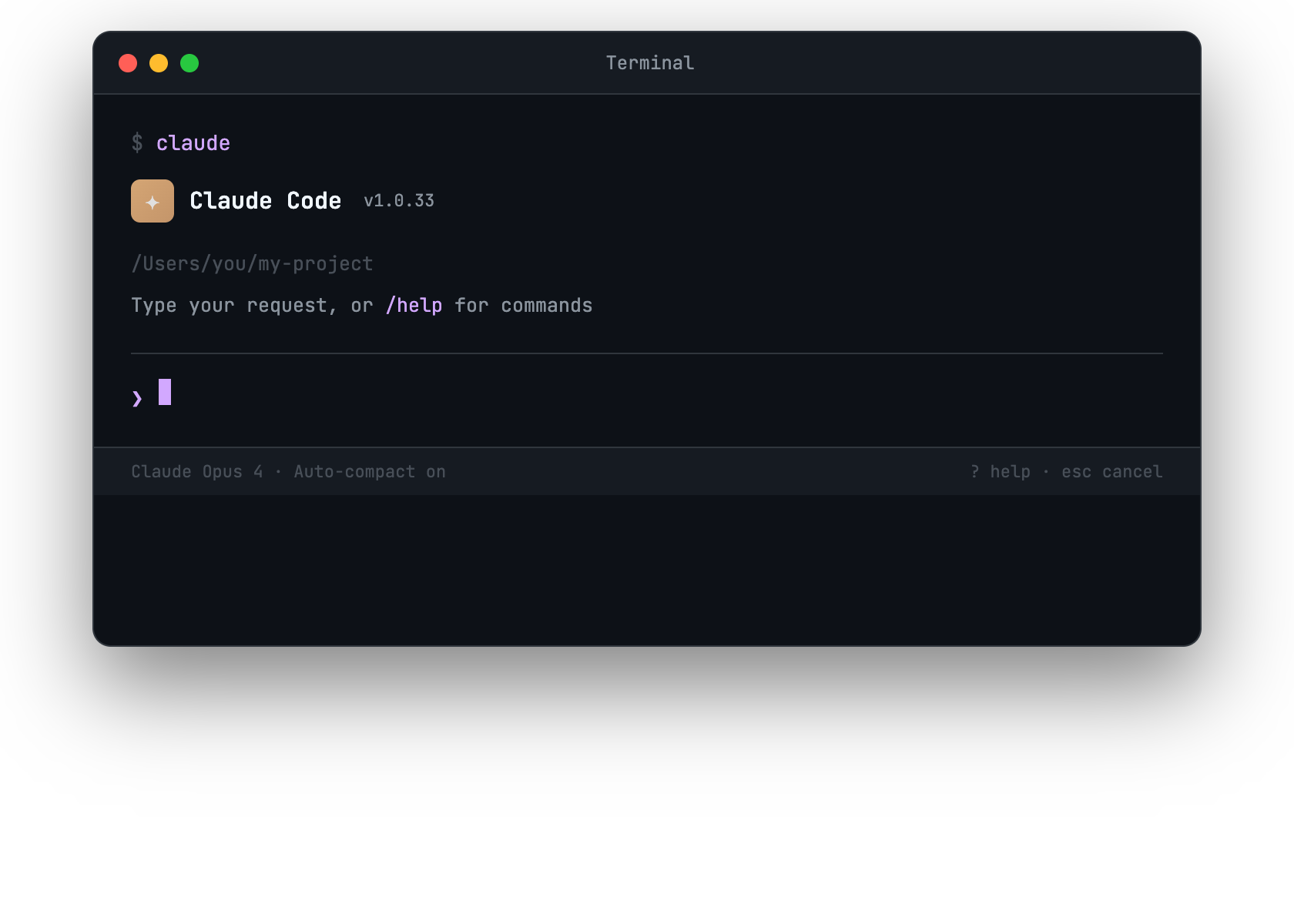
You will see Claude Code’s welcome screen: a dark terminal interface with an input prompt at the bottom. It will ask you to log in with your Anthropic account the first time. Follow the prompts in your browser to connect your account.
“command not found” after installing Node.js: Close your terminal completely and open a new one. If that does not work, restart your computer.
“npm is not recognized” on Windows: Make sure you checked “Add to PATH” during the Node.js installation. If not, uninstall Node.js and reinstall, checking that box.
Already have Node.js but it is old: Claude Code needs Node.js 18 or newer. Run node --version to check. If it is below 18, download the latest LTS from nodejs.org.
Claude Code is running. Time to use it.
Open your terminal and type:
claude
You are now inside Claude Code. You will see a dark screen with a prompt at the bottom, waiting for your input. Everything you type here is a conversation with an AI that can see and modify files on your computer.
Type this:
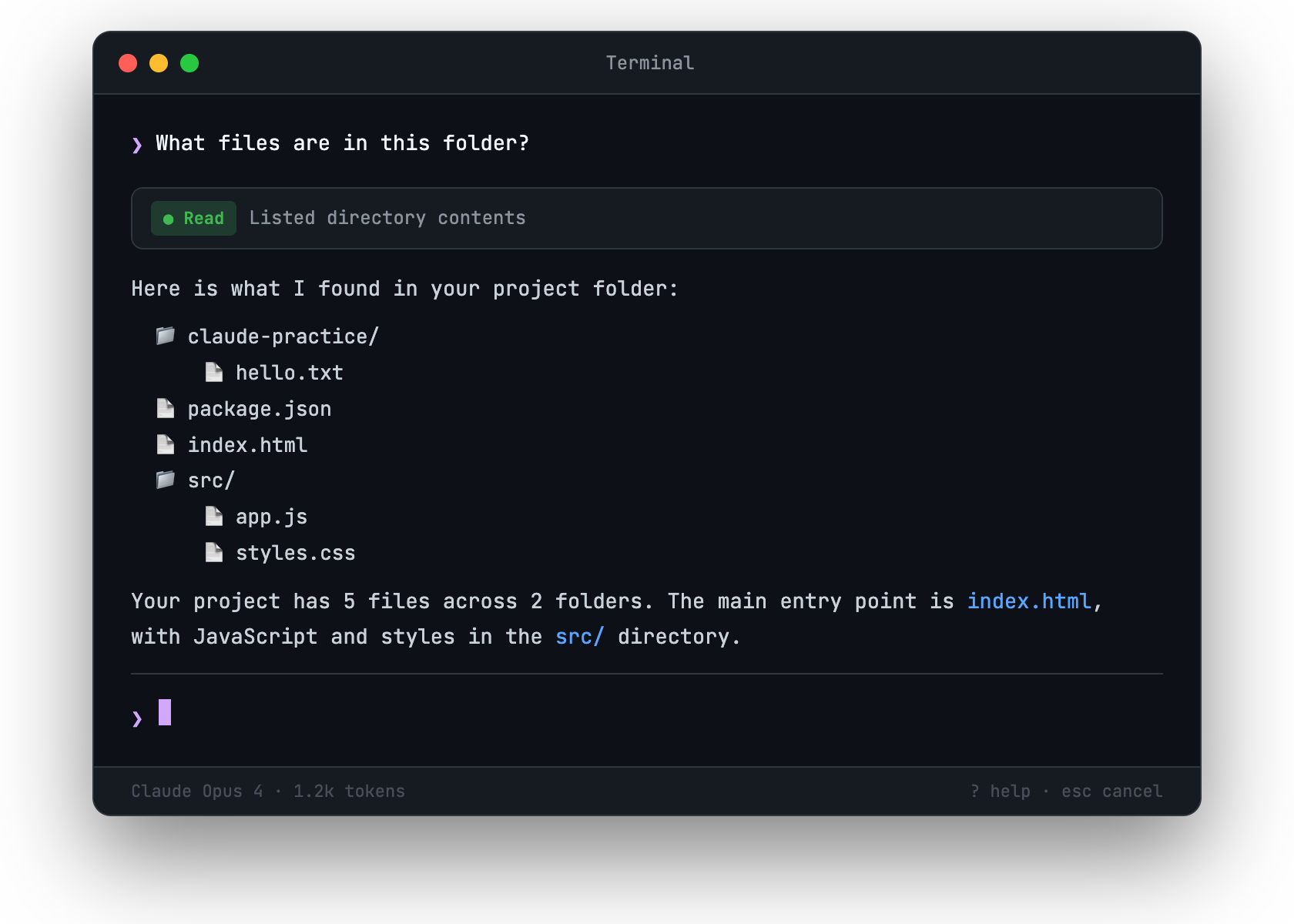
What files are in this folder?
Watch what happens. Claude Code will explore your file system and tell you what it finds. This is not a guess. It is reading your actual files in real time.
Now type this:
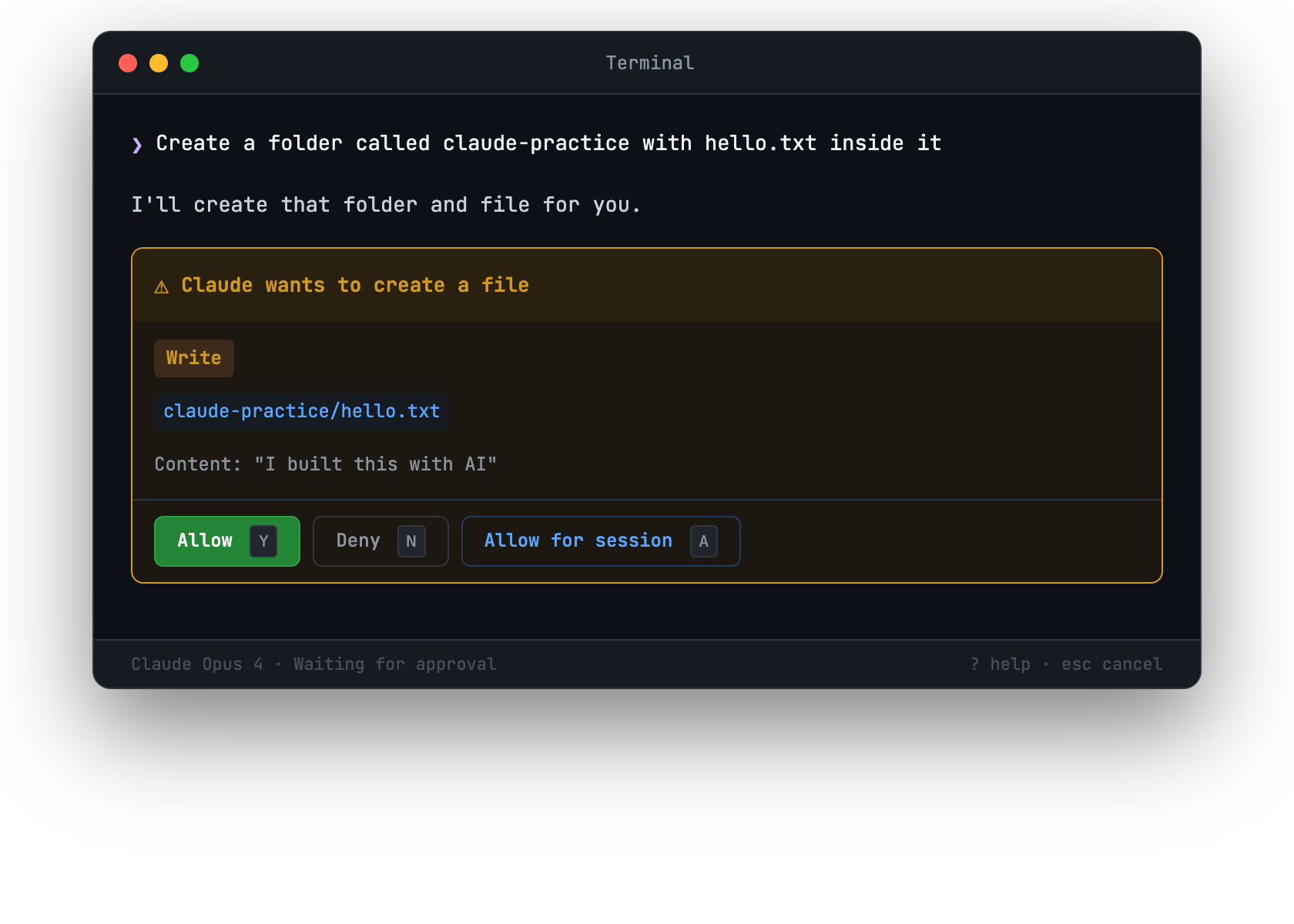
Create a new folder called claude-practice and put a file called hello.txt inside it that says "I built this with AI"
Claude Code will ask your permission before creating the folder and file. Approve it.
Then ask:
Show me the contents of the hello.txt file you just created
The file is there. The text is inside it. Claude Code created a real file on your real computer.
This is the core loop. You describe what you want in plain English. Claude Code asks permission. You approve. It executes. Everything it does is visible and reversible. You are always in control.
Claude Code never silently modifies your computer. Every file creation, edit, or command execution shows you what it wants to do before it does it.
As you build trust, you can allow certain operations automatically. But for now, reviewing each action is the right approach. It lets you see exactly what Claude Code does and how it works.
After this lesson, the only terminal command you will ever type yourself is cd followed by a folder name. It means “go to this folder.” For example, cd my-site takes your terminal into the my-site folder. You need this to tell Claude Code which project to work on.
Everything else, you tell Claude Code in plain English.
When you are done, type:
/exit
Or press Ctrl+C. Claude Code closes. The files it created stay on your computer. When you open Claude Code again later, it starts a fresh conversation, but it will read the files in your folder to understand what already exists.
You have seen Claude Code in action. Before you start building real projects in the next lesson, it helps to understand how it works. Not the technical details, but the mental model.
When you open Claude Code in a folder, it can read every file in that folder and its subfolders. It understands project structure, configuration files, code in dozens of programming languages, and plain text. When you ask it to do something, it reads what it needs to make informed decisions.
This is why working inside a project folder matters. Claude Code in an empty folder has no context. Claude Code inside your project knows what already exists and builds on top of it.
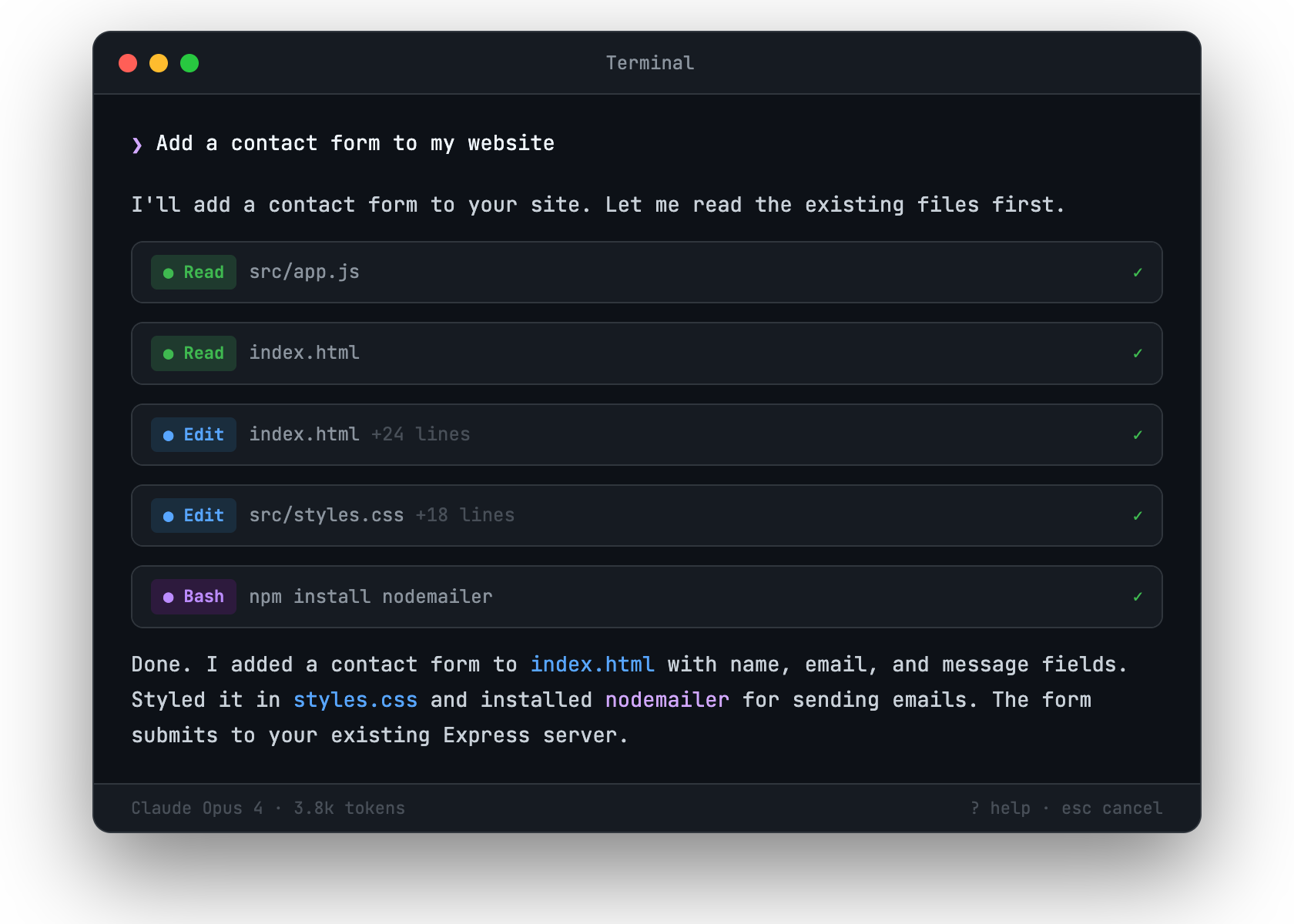
Claude Code does not just generate text. It uses specific tools to interact with your computer. You will see these in action as you work:
When you say “add a contact form to my website,” Claude Code reads your existing files, decides where the form should go, uses Edit to insert it, and might use Bash to install a form-handling library. It chains these tools together automatically.

Watch Claude Code work on a non-trivial task and you will notice it reads relevant files first, considers the approach, then executes step by step. If something goes wrong, it reads the error, adjusts, and tries again.
You can see this process in real time. Claude Code shows you what it is doing and why. This means you can redirect early instead of discovering problems after the fact.
The most important mental model: you are the architect, Claude Code is the builder.
You decide what to build. Claude Code figures out how to build it. You approve each action. You can interrupt at any point by pressing Escape, change direction, ask questions, or tell it to try a different approach.
Good prompts are specific about the outcome, not the implementation:
You do not need to say “use React” or “add a CSS class” or “create a function.” Claude Code makes those decisions based on your project’s existing patterns. If you have opinions about implementation, you can express them. But you do not have to.
You have Claude Code installed, you have had your first conversation, and you understand the mental model. In the next lesson, you will build your first real project: a personal landing page, from scratch. You will keep improving this same project throughout the rest of the course, and deploy it to the internet in the final lesson.