Teach Claude how you work. CLAUDE.md files, memory, custom instructions.
Day 3 · 15 min
Every time you open Claude Code in a folder, it starts a fresh conversation. It does not remember what you talked about yesterday. It does not know your preferences or your project’s conventions.
Unless you tell it.
Create a file called CLAUDE.md in the root of your project folder (the same folder where your other files live, not inside a subfolder). Claude Code reads this file automatically every time it starts. Think of it as a briefing document. Whatever you write here, Claude Code follows.
Open Claude Code in your my-site project:
cd my-site
claude
Now try:
Create a CLAUDE.md file with these instructions:
- This is a personal website built with plain HTML and CSS
- Use dark backgrounds with blue accent colors
- Keep the design minimal and modern
- All pages should have the same navigation bar
- Use the font Inter for all text
Now close Claude Code (/exit) and reopen it:
claude
Ask it to make a change:
Add a blog page
Watch what happens. Claude Code reads CLAUDE.md first, then builds the blog page using your dark theme, your font, your navigation pattern. You did not have to repeat yourself.
Anything that should be true every time you work on this project:
Keep it short. A few bullet points is enough. Claude Code reads the whole file every session, so concise instructions are more effective than long essays.
CLAUDE.md is for project-specific instructions. Memory is for things Claude Code should know about you across all projects.
When you tell Claude Code something about yourself or your preferences, it can save that to a persistent memory file on your computer. Next time you start a session, in any project, it has that context.
Try it:
Remember that I prefer dark themes and minimal designs for all my projects
Claude Code will save this preference. Now go to your my-tool folder, open Claude Code, and ask it to add something visual. It will default to dark themes without you mentioning it.
The distinction is simple:
Use CLAUDE.md for project rules: “this site uses plain HTML and CSS.” Use memory for personal preferences: “I prefer dark themes.” Both are read automatically. Neither requires you to repeat yourself.
By now you have approved dozens of actions. Every file creation, every edit, every command. That is the default behavior: Claude Code asks, you approve.
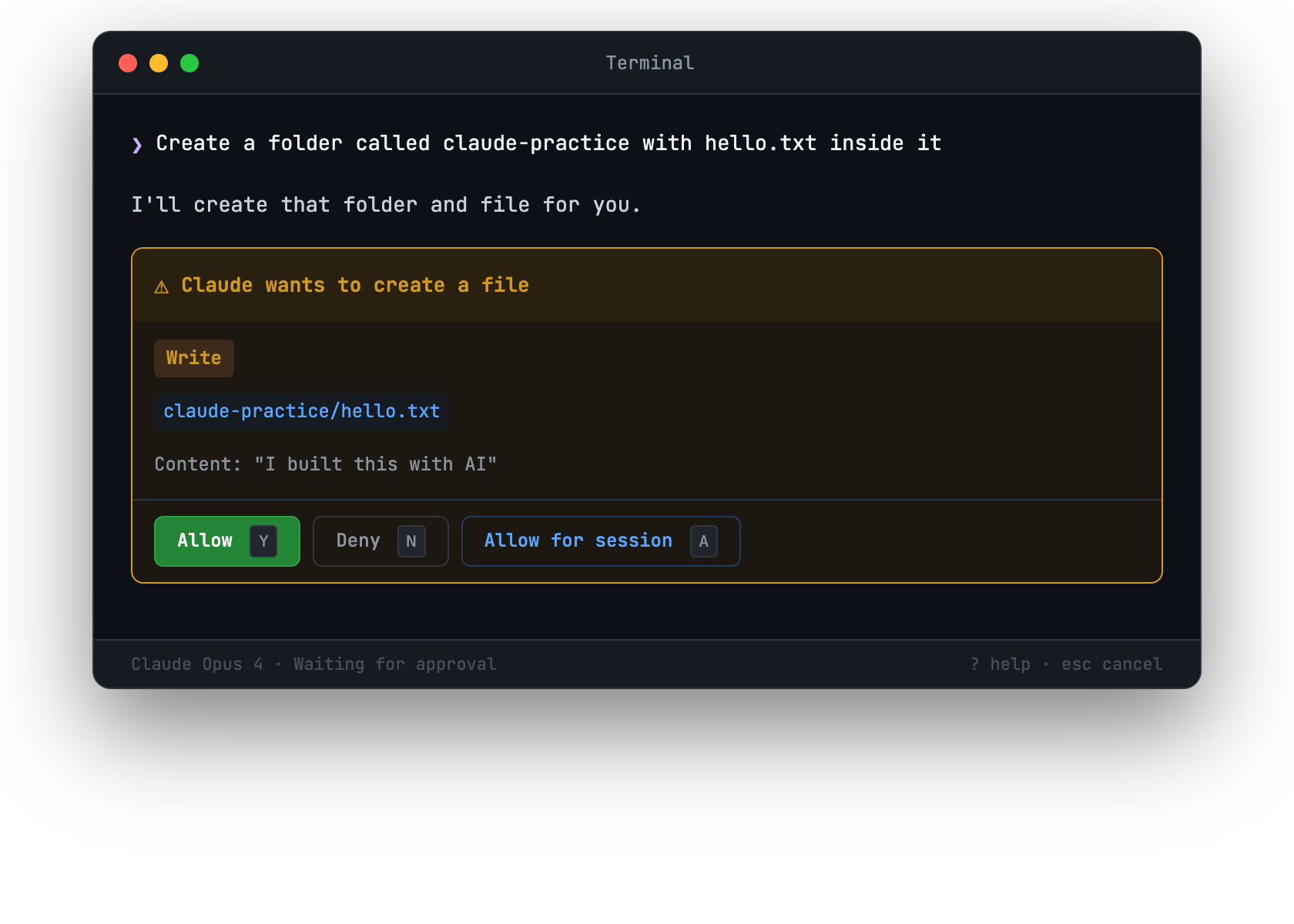
As you build trust, you can change this.
When Claude Code asks permission for something you always approve, you have options. During the permission prompt, look for choices beyond just “yes” or “no.” You can often allow that type of action for the rest of the session.
You can also tell Claude Code directly:
Allow all file reads and writes in this project without asking
Claude Code has different permission modes:
For now, stick with the default. Seeing every action teaches you how Claude Code works. As you get more experienced, you will naturally want less friction.
Even in the most permissive mode, Claude Code shows you what it is doing. You can always:
Escape to interrupt any action/exit to end the sessionThe permission system exists to make your control explicit, not to slow you down. Over time, you will find the level that matches your comfort.
You now have all the pieces. Let’s put them together into a workflow that works for you.
Most people who use Claude Code regularly settle into something like this:
CLAUDE.md and your memory automatically.Start small. “Add a footer” is better than “redesign the entire page.” Small, focused requests get better results than vague, sweeping ones.
Be honest about what is wrong. “The spacing looks off between the header and the content” is more useful than “make it look better.” Claude Code can fix specific problems. It struggles with vague dissatisfaction.
Use Claude Code for exploration. Not sure if an idea will work? Ask Claude Code to prototype it. If you do not like the result, tell it to undo the changes. The cost of trying something is nearly zero.
Save your instructions. When you find a prompt that works well, put it in CLAUDE.md. “When creating new pages, always include the navigation bar and footer” saves you from repeating it every time.
You have built a website. You have built a tool. You have customized Claude Code to work the way you like. One thing remains: putting your project on the internet so anyone can see it. That is the final lesson.